Initiate a New Chat
You can initiate a chat with a contact if the contact is already added in duochat. You can also add a new contact and start a conversation by sending a WhatsApp template message.
Note: As per Meta’s WhatsApp policy, businesses must send a pre-approved template message to initiate a new conversation with a customer.
Once the customer replies to the template message, you can continue the conversation normally using free-form messages. This helps maintain a healthy messaging ecosystem on WhatsApp.
Start a Chat with a Saved Contact
Follow the steps below to start a chat with an existing contact:
Step 1:
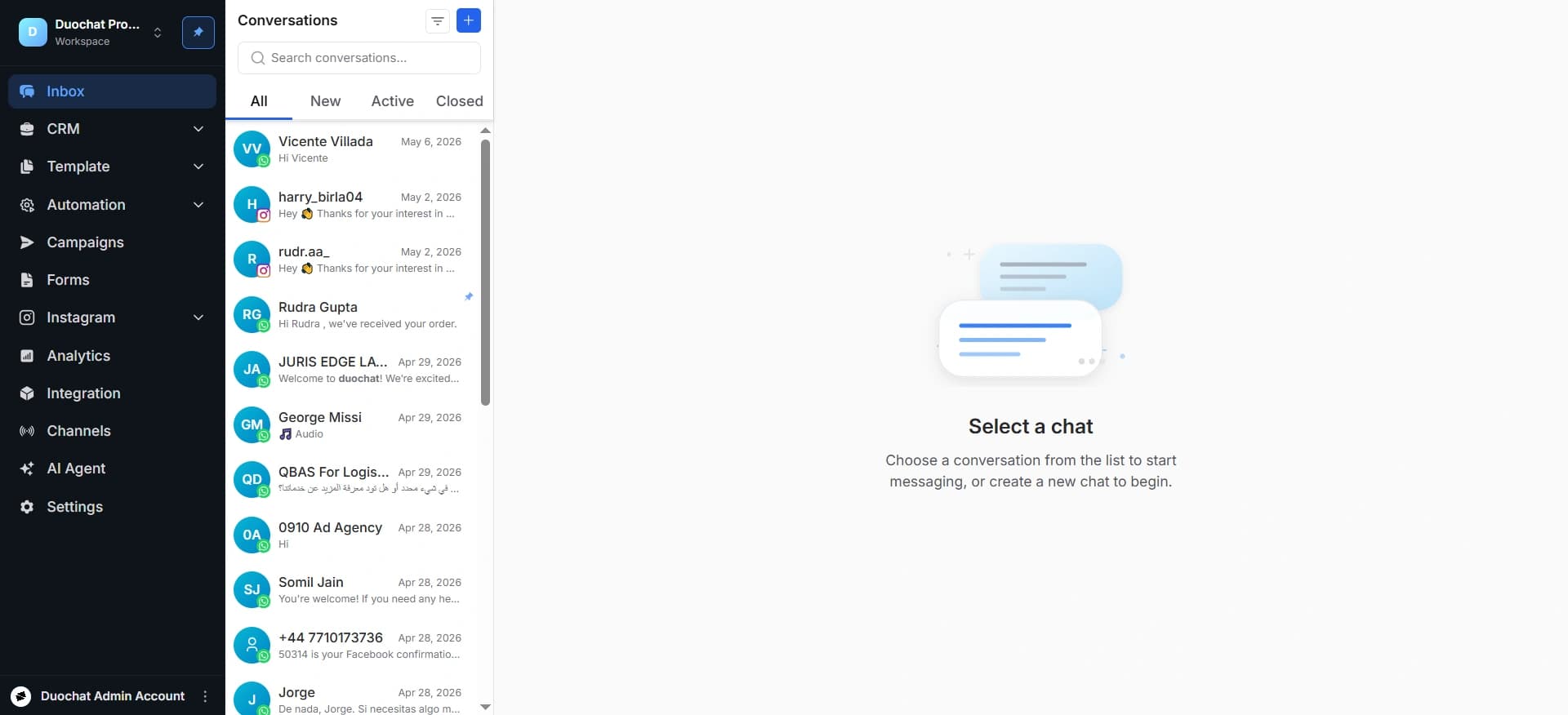
From the left navigation bar, go to Inbox.
Step 2:
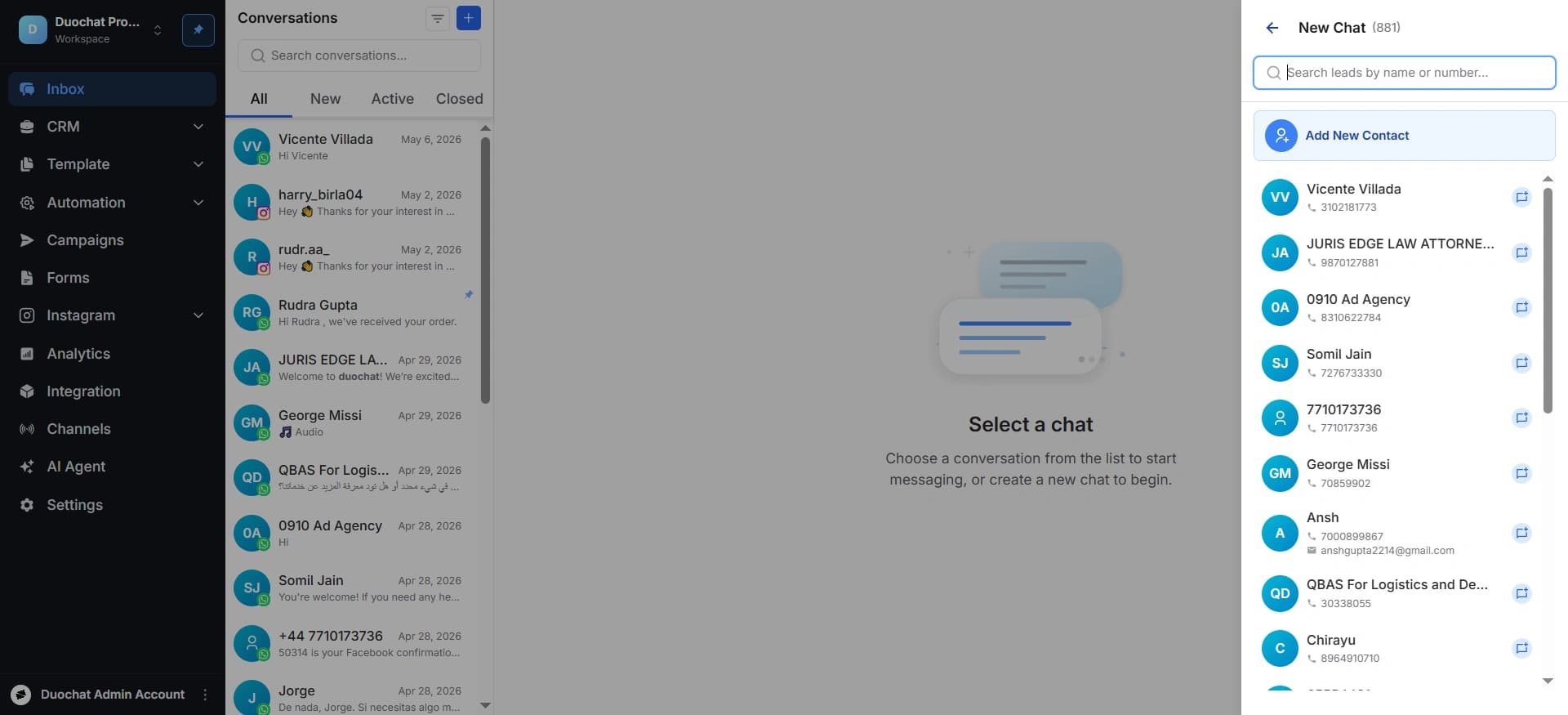
Click the “+” button available above the search conversation bar.
Select the contact you want to start a conversation with. Once selected, the chat window will open.
Step 3:
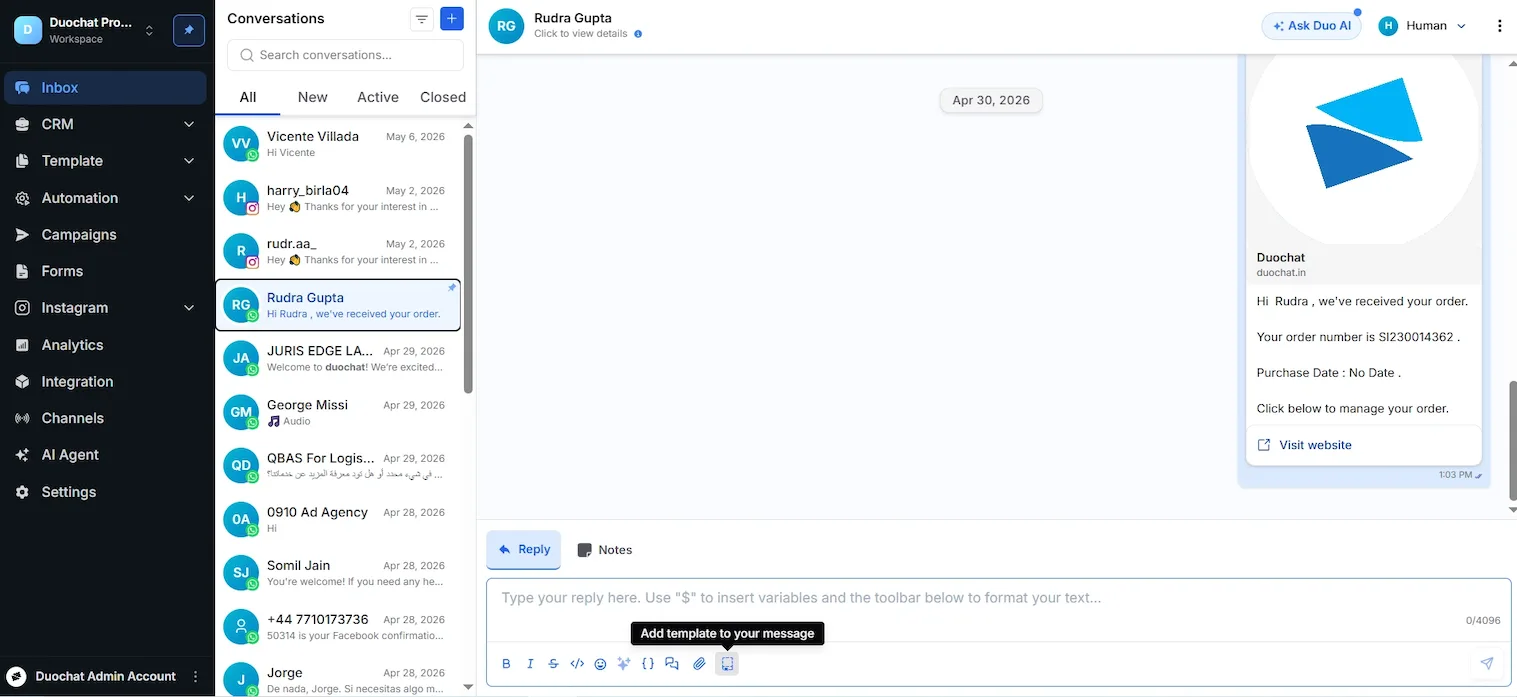
To initiate the conversation, select a pre-approved WhatsApp template you want to send to the contact.
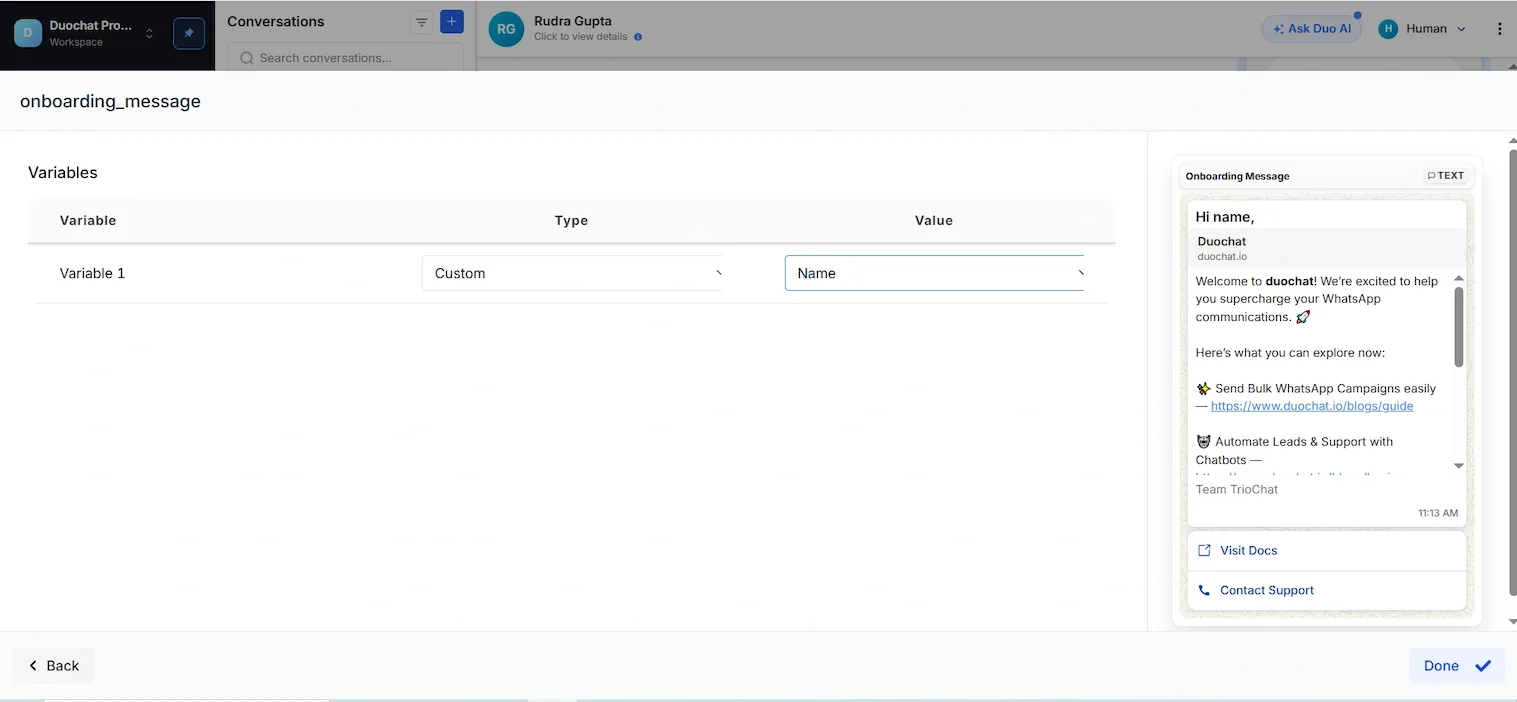
Fill in the required template variables and click Send.
Once the customer replies to your template message, you can continue chatting normally.
Start a Chat with an Unsaved Contact
Follow the steps below to start a chat with a new contact:
Step 1:
From the left navigation bar, go to Inbox.
Step 2:
Click the “+” button available above the search conversation bar.
Then click “Add New Contact”.
A dialog box will appear asking for the contact details. Fill in the required information.
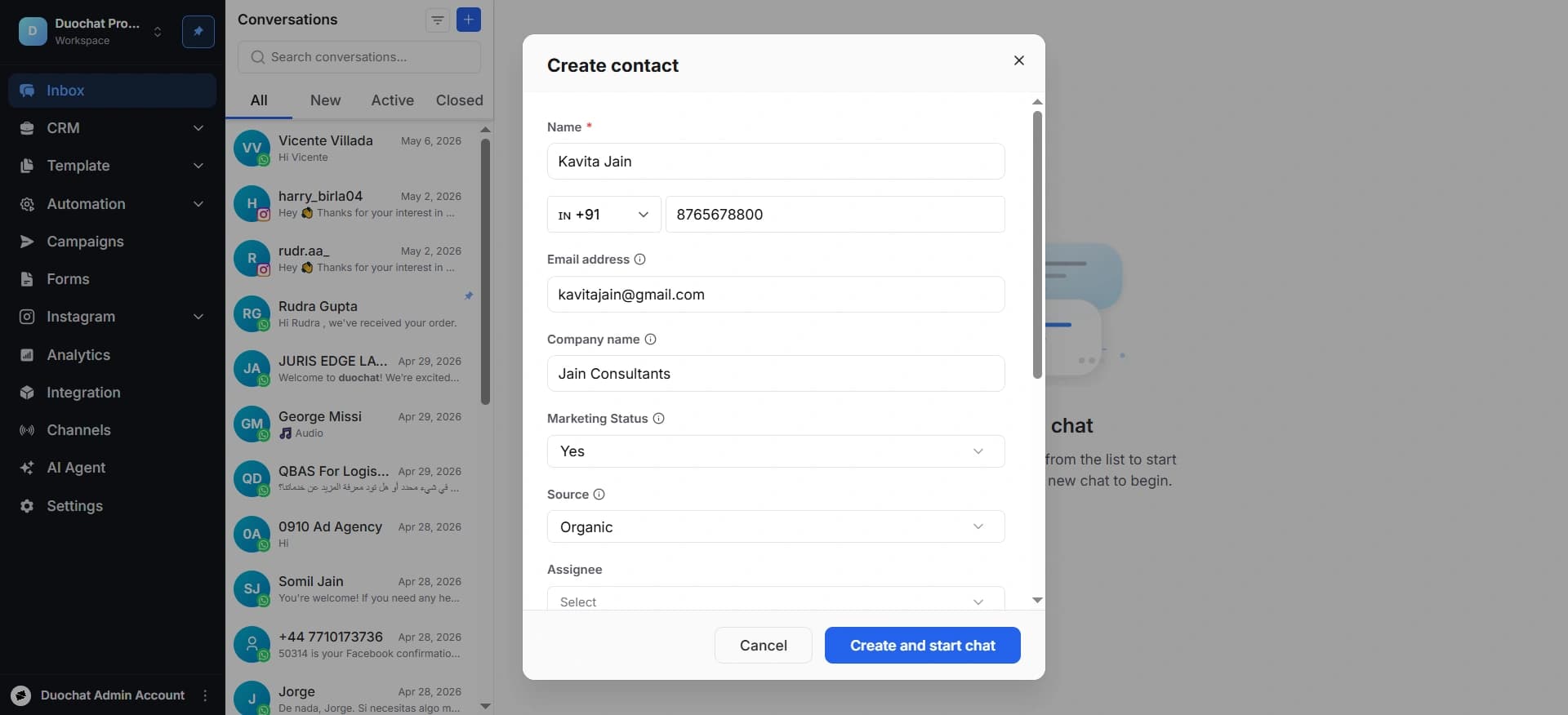
Step 3:
Click the “Create and Start Chat” button.
Select a pre-approved WhatsApp template, fill in the required variables, and click Send.
Once the customer replies to your template message, you can continue chatting normally.
On this page