Push Notification SDK Overview – duochat
duochat allows you to send push notifications to your applications from our dashboard. The following are the two ways to implement push notifications on an Android device:
-
Default duochat Implementation – This is the easiest way to implement push notifications. For more information, refer to Adding duochat listener service.
-
Custom Android Push – Use it only if you already have your implementation or use another push provider. For more information, refer to Custom Android Push Notifications Handling.
Configure Push Notifications
The following are the steps to configure push notifications for your Android app using duochat:
- Find FCM Credentials – Locate your Firebase Cloud Messaging (FCM) credentials required for push notifications.
- Set Up FCM Credentials – Enter your FCM credentials in the duochat dashboard to enable push notifications for your app.
Find FCM Credentials
Firebase Cloud Messaging (FCM) is a service that allows you to send notifications to your applications and receive information from them. Your FCM Sender ID and API key authenticate against duochat, enabling you to send notifications to your users from the duochat dashboard
To find the FCM credentials:
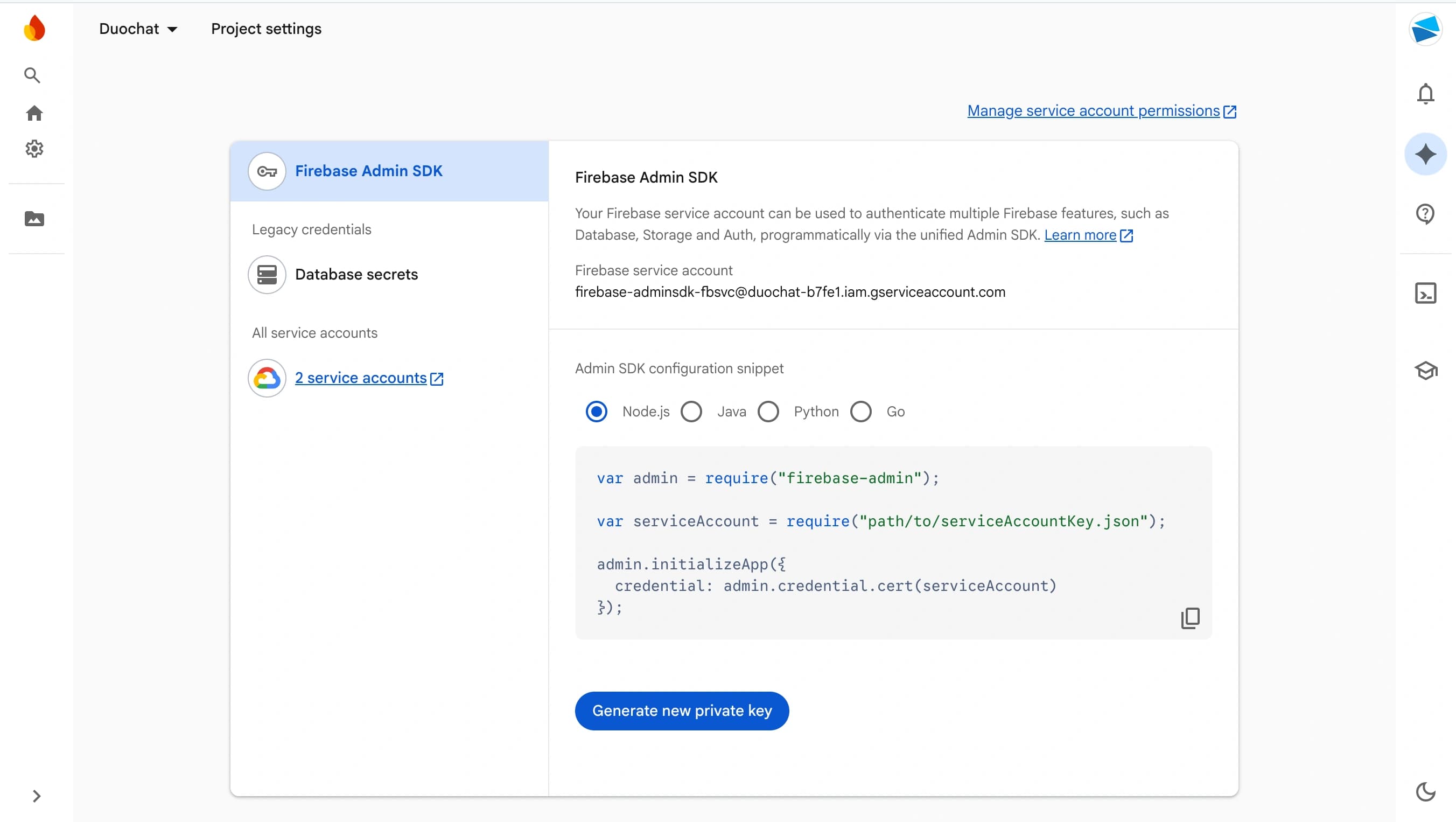
- Log in to the Firebase Developer Console and go to Settings > Service Accounts.
- To obtain the FCM Credential File, click Generate new private key.
- Confirm your action by clicking Generate Key.
Set Up FCM Credentials on duochat
To ensure your campaigns are delivered, you must set up FCM Credentials on the duochat dashboard:
- Log in to the duochat dashboard and go to Settings > Channels > Mobile Push.
- Click the FCM credentials section and then click Upload FCM Credential File, as shown in the following image:
- Click Save to confirm your credentials.
- Send a personalized push campaign to internal users to verify that the configuration is successful.
On this page