Open and Close Conversation
Open Conversation

What Is the Open Conversation Feature?
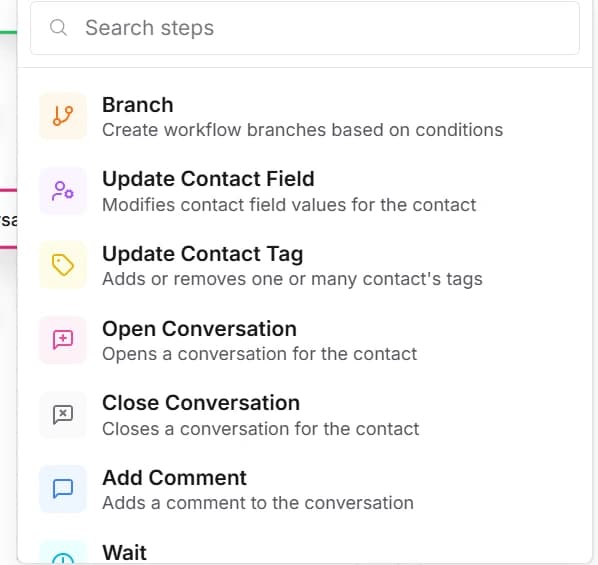
The Open Conversation feature in duochat is used to initiate or reopen a chat session with a contact.
When this action is triggered, it automatically opens a conversation window, allowing the chatbot or a human agent to start messaging the contact instantly.
This feature is especially useful when you want to reach out to users proactively — for example, to send updates, follow-ups, reminders, or important alerts.
How It Works
When a workflow reaches the Open Conversation step, duochat performs the following actions:
- It opens a new chat window for the selected contact within your connected WhatsApp Business account.
- The chatbot or assigned agent can begin sending messages to the contact immediately.
- The contact receives the message in their WhatsApp inbox, just like a normal conversation.
- duochat logs the entire conversation automatically, ensuring message history is always available.
- If the contact already had a previously closed conversation, this step reopens it — making sure no engagement opportunity is missed.
Best Practices
Use It Purposefully
Only open conversations when it’s genuinely necessary—such as sending important updates, confirmations, or re-engagement messages.
Avoid overusing this feature, as too many unsolicited messages can feel spammy.
Personalize the Message
Whenever a conversation is opened, include a warm, personalized message that provides value to the user.
Example:
“Hi Riya, we noticed your last order is ready for delivery. Would you like to track it now?”
Suggested Use Cases
1. Post-Purchase Follow-Up
Automatically open a conversation after an order is placed to confirm details or request feedback.
2. Re-Engagement Campaigns
Reopen conversations with inactive leads to share new offers, updates, or promotions.
3. Appointment Reminders
Open a conversation to remind users about upcoming meetings, calls, or scheduled visits.
4. Support Responses
When a support ticket is raised, open a conversation so your team or chatbot can respond instantly.
In Summary
The Open Conversation feature ensures smooth, timely communication between your brand and customers.
It helps your team stay proactive, build better engagement, and keep every interaction meaningful.
Close Conversation

What Is the Close Conversation Feature?
The Close Conversation feature in duochat is used to end an active chat session with a contact once the interaction or workflow is complete.
It helps maintain organized communication, ensuring that only ongoing and relevant chats remain open.
By closing a conversation at the right time, you keep your team’s dashboard clean, improve tracking, and clearly separate completed interactions from pending ones.
Configuration of Close Conversation
Setting up this feature involves two simple configuration steps:
1. Conversation Category
This option allows you to classify the closed conversation under a specific category.
Common categories include:
- General Inquiry – For non-specific questions or basic chats.
- Sales – For conversations related to orders, pricing, or new leads.
- Support – For issue resolution or complaint handling.
Assigning a category helps in better sorting and reporting of conversations later.
2. Summary
The summary field lets you add a short note or description about the conversation before it’s closed.
Examples include:
- “Customer inquired about bulk pricing.”
- “Issue resolved: Replaced defective item.”
- “Lead confirmed demo schedule.”
This information helps your team understand what the chat was about without reopening it.
How It Works
Once a workflow reaches the Close Conversation step, duochat automatically performs the following:
- Marks the conversation as closed in the system.
- Records the selected category and summary for proper documentation.
- Removes the chat from the list of active conversations, keeping your dashboard clean.
- Updates the contact’s history, ensuring the interaction is fully logged.
This helps keep your workspace organized and allows agents to focus on new or pending queries instead of completed ones.
Suggested Use Cases
Support Ticket Resolution
After a customer’s issue is resolved, close the conversation with a summary such as
“Issue fixed, product replaced.”
Sales Workflow Completion
When a lead converts or a deal is finalized, close the conversation under the Sales category with a clear summary.
Automated Workflow Endpoints
Use this feature at the end of automated processes—like registration, feedback collection, or order confirmation—to close the chat cleanly once the workflow is complete.
In Summary
The Close Conversation feature helps streamline your customer communication process by marking chats as complete, maintaining organized records, and improving team efficiency.
It’s a simple yet powerful way to keep your duochat workspace neat and structured.
On this page