Add Contacts
CRM
Managing contacts is a crucial aspect of effective communication, and Duochat provides a centralized hub for businesses to maintain and utilize customer data efficiently.
Contacts
Contacts are basically the customers. Creating contacts refers to establishing a connection between business and individual customer phone numbers so that you can communicate with them through the WhatsApp platform. This involves the customer initiating a conversation by messaging your business, or your business proactively contacting the customer after they have opted-in to receive messages.
💡 Quick Overview:
Create contacts in duochat through single contact creation or bulk contact import. Follow simple steps to add details and upload contacts efficiently.
📋 How to Create Contacts in duochat
Contacts in duochat can be created through the below mentioned ways:
✅ Single contact creation
✅ Bulk contact import
👤 Single Contact Creation
Go to Contacts from the side navigation bar under the CRM option.
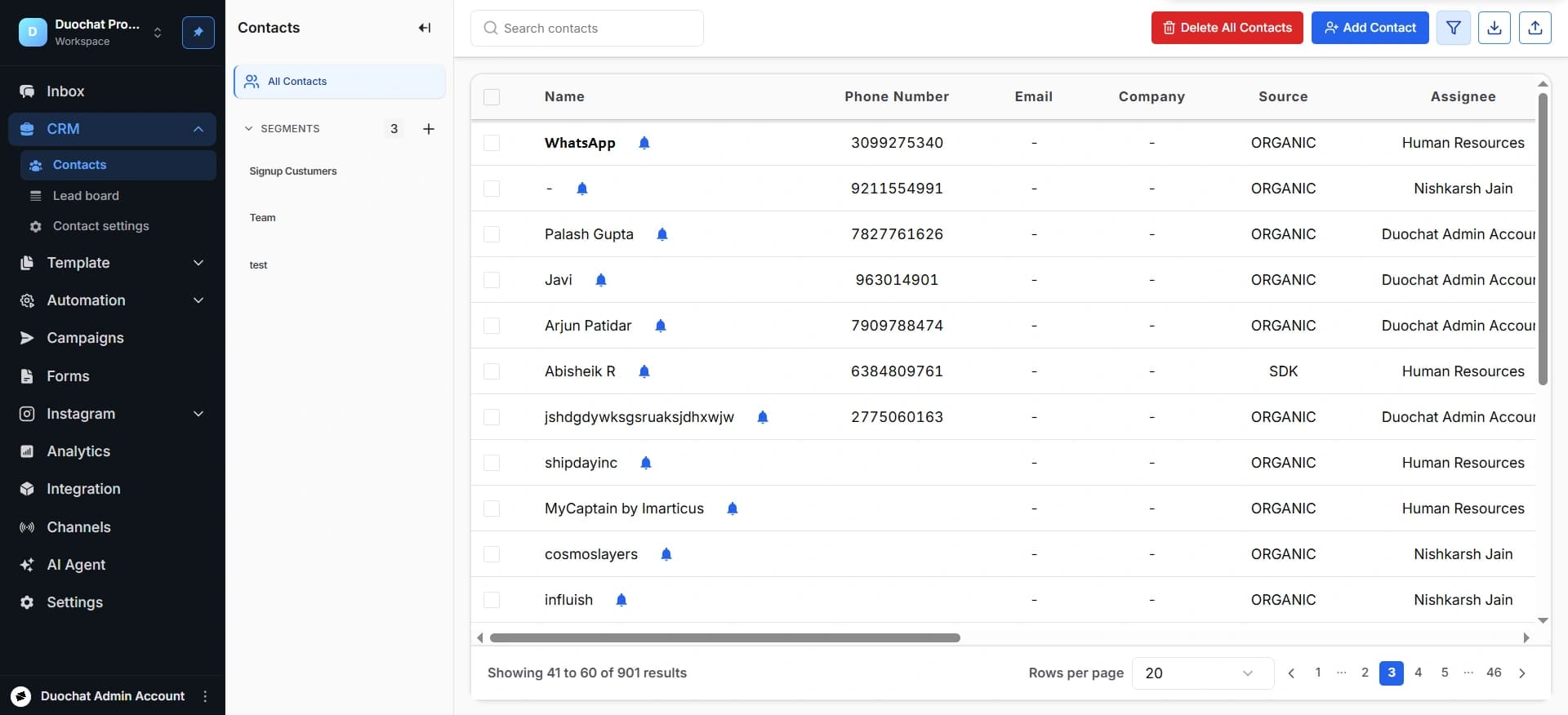
To create a single contact, click on "Create Contact", on the top right corner.
A window will open prompting you to add the details to create the contact - Name, Phone, email, Tags, and other details.
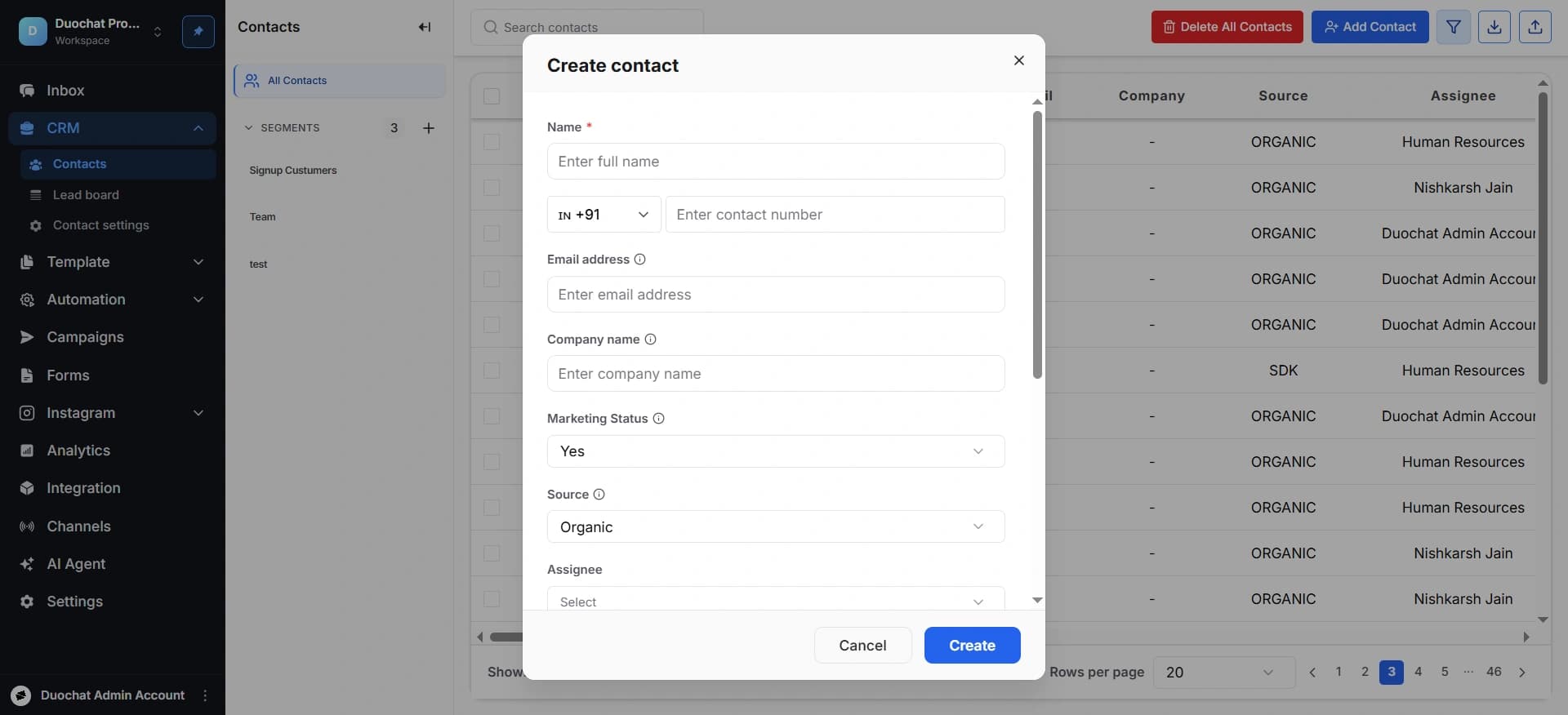
And the contact will be created.
📊 Bulk Contact Import
To import contacts in bulk to duochat, you have to click on the Import icon, arrow down icon, available at the top right corner.
Once you click on the Import button, a dialog box will appear. The first step is to upload the CSV file.
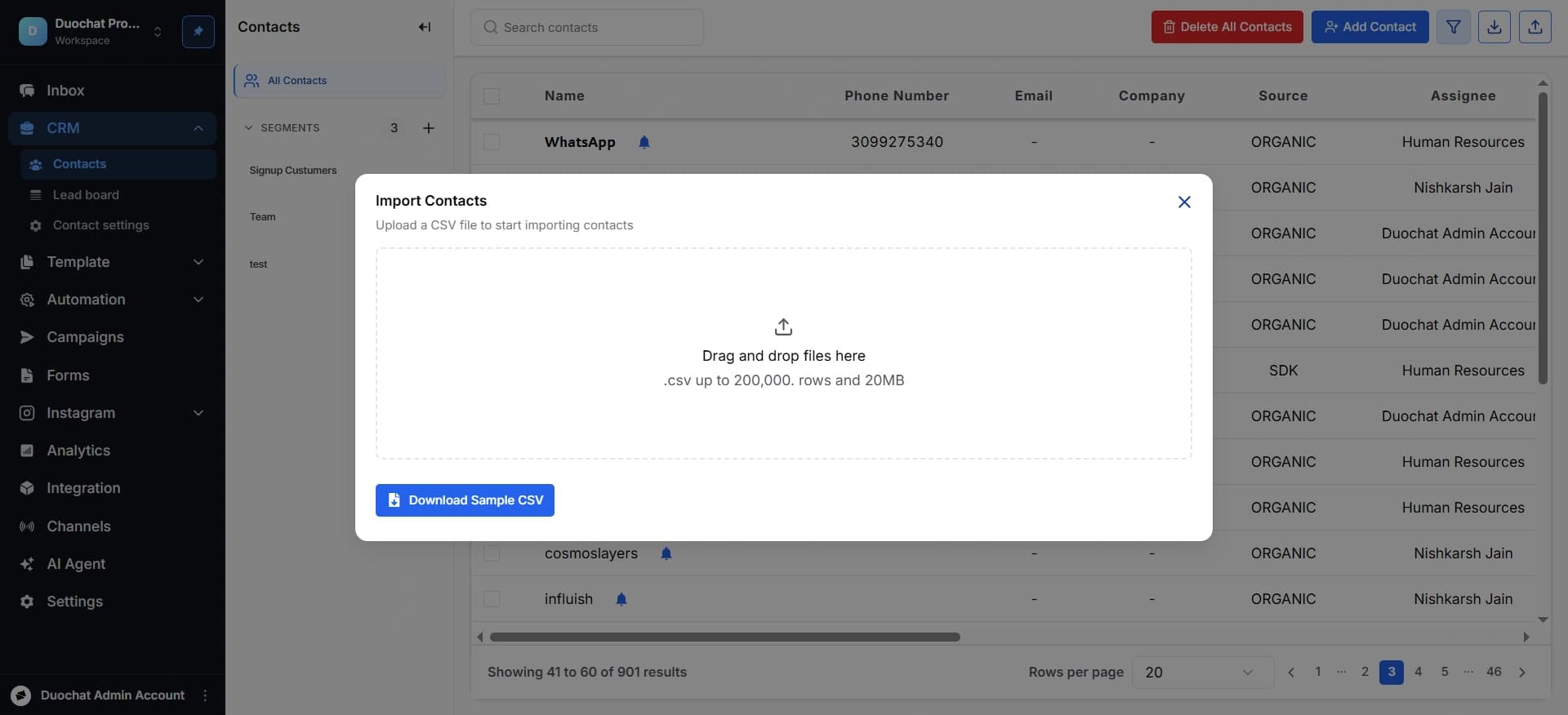
Below are the instructions to upload the file:
a. Import must use an email or a phone number to identify existing contacts.
b. File size cannot exceed 20 MB.
c. The file must contain less than 200,000 rows.
All columns must have headers to be mapped successfully.
In case you didn't have the clarity, you can download the sample csv to know how the data should be.
After uploading the file, fill in the details required.
Import Purpose- State the purpose of importing the contacts. Either you want to add contacts and update the new ones. So there are 4 options shown below.
| Import Purpose | Action |
|---|---|
| Add new contacts only | Adds only new Contacts in the CSV file to the Workspace. |
| Update existing contacts only | Updates only existing Contacts in the Workspace with values from the file. |
| Add & update contacts | Updates existing Contacts and adds new Contacts to the Workspace. |
| Add all contacts despite duplicates | All Contacts in the file will be treated as new Contacts. You can review and merge duplicate Contacts manually on the platform. |
The next is to select an Identifier to recognize existing Contacts. The identifier can be a phone number or email. If your import purpose is Update Existing Contacts Only, you can also select Contact ID as an identifier.
Also, set the default country code if the code is not present in the csv file.
And add tags if you want to make a separate tag name for the contacts.
Map Contacts- Map CSV Headers to Contact Fields
Map the column headers in the CSV file to Contact Fields in your Workspace. This determines which Contact Field will be updated with a column’s values. If a column header in the file perfectly matches a Contact Field name (e.g. Phone Number), it will be mapped automatically.
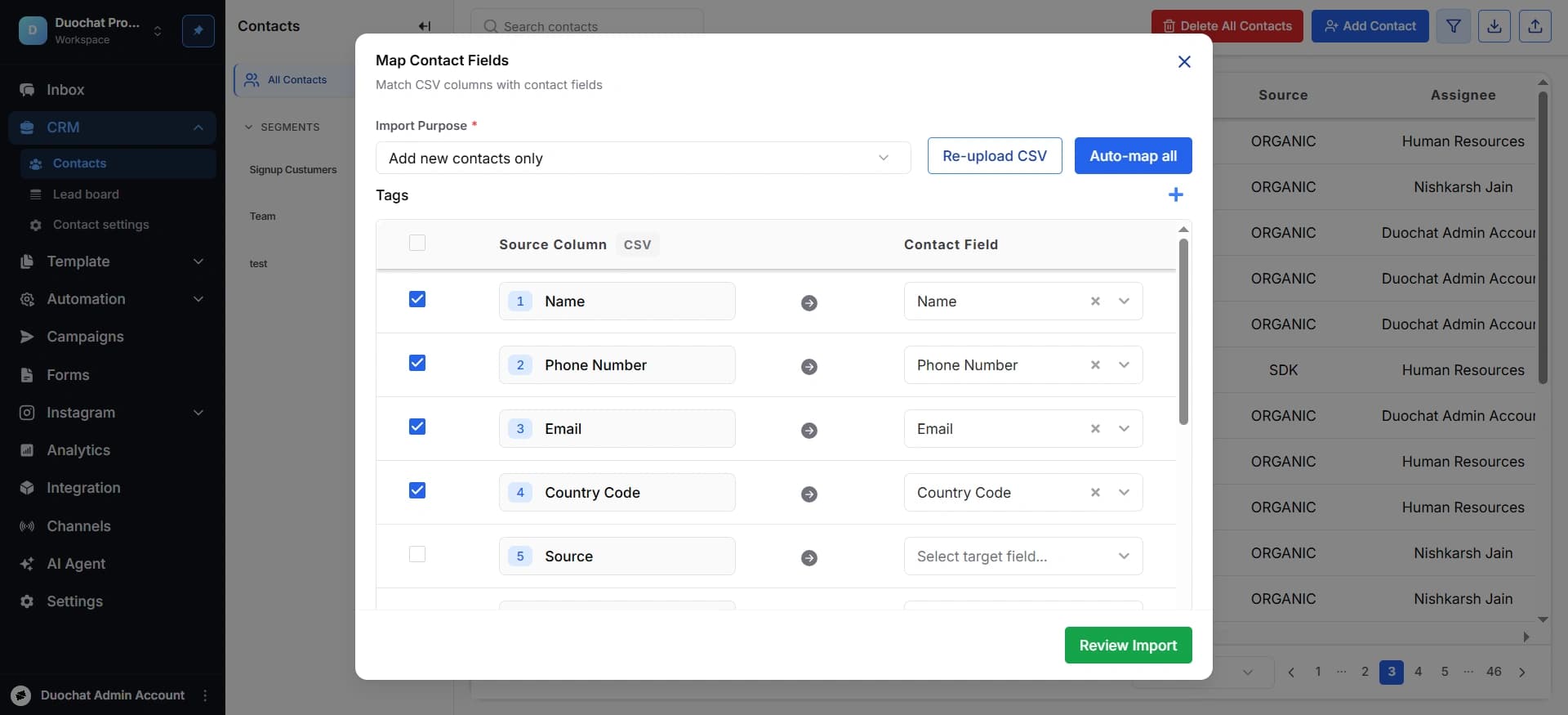
Ensure that the defined identifier is mapped. Each Contact Field can only be mapped once.
If you wish to skip a column so its values are not imported, uncheck the checkbox on its left. A minimum of one column must be selected to proceed with the import.
The number of Contacts that will be added and updated after the import, or skipped due to errors, will be reported. Once ready, click Import to proceed.
Rows containing errors will not be imported. To identify errors in the original rows, click on "Download error file" to download a CSV file with an “Error” column. Resolve the errors described in the error messages. Once done, upload the corrected CSV file or return to Part 1 to reconfigure the import.
📤 Export Contacts
Export your contact records from your duochat account. To view your contact list open the downloaded file in your local device.
To export, click on the Export button, available on the top right corner near the import option.
On this page