Members
Overview
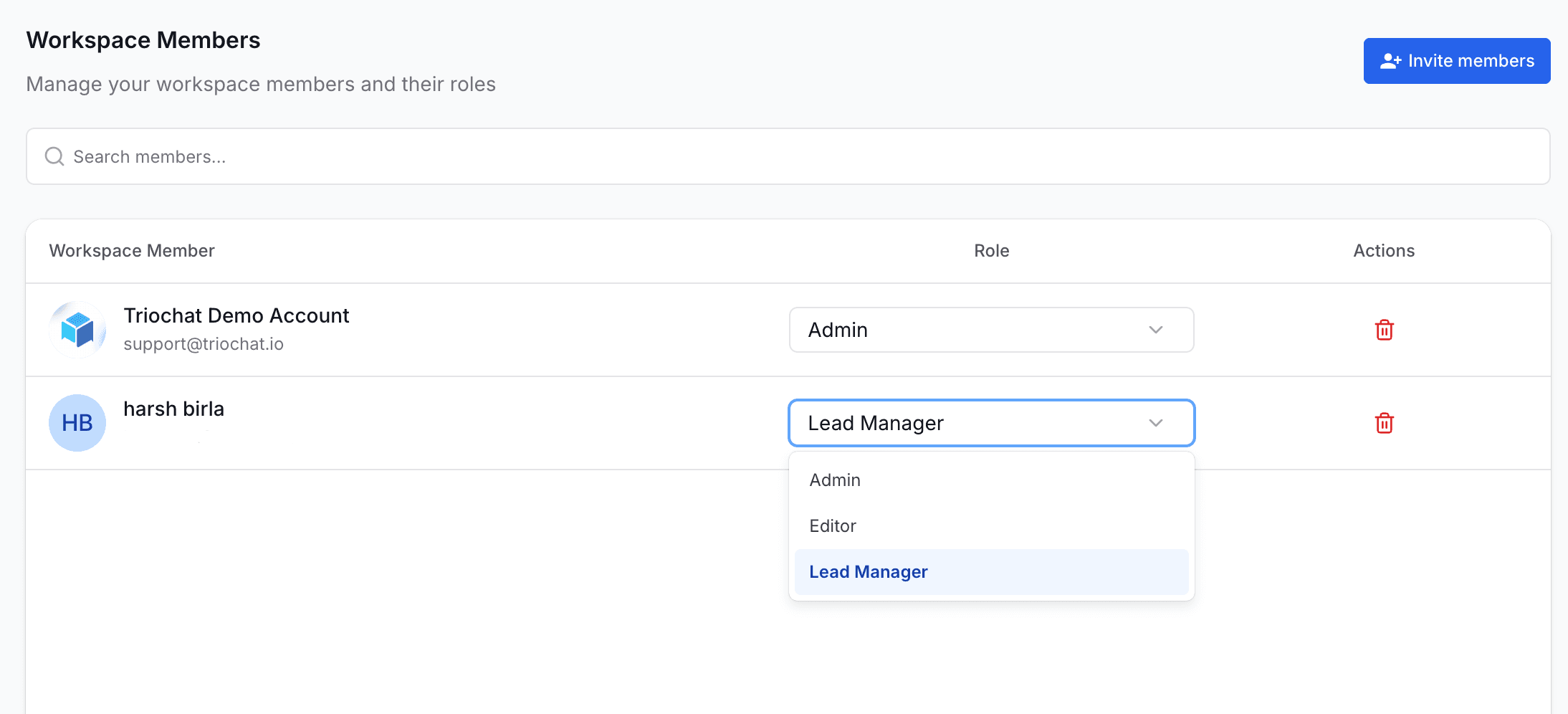
The Members section allows you to manage the people who have access to your workspace. You can assign roles, update permissions, and add or remove team members based on their responsibilities.
Proper member management ensures secure access control and smooth collaboration across your team.
Managing Members
From the Members page, you can:
- View all existing workspace members along with their email and assigned role
- Change a member’s role instantly using the role dropdown
- Remove members who no longer require access
- Invite new members by entering their email address
Roles Explained
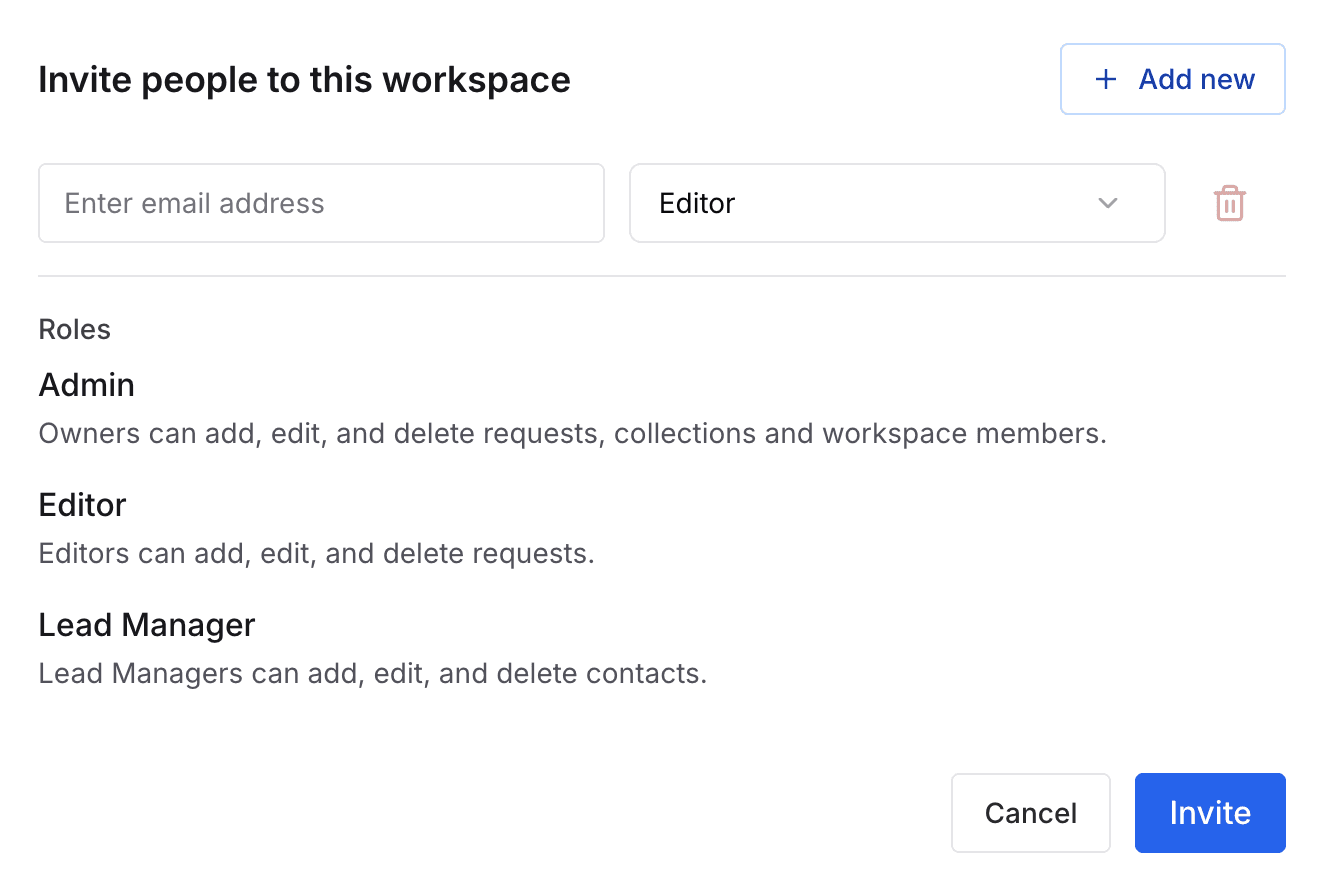
duochat provides three built-in roles, each with different permission levels.
1. Admin
Admins have full control over the workspace.
Admins can:
- Add, edit, and delete requests
- Manage collections
- Add, edit, and remove workspace members
- Access all settings and channels
- Manage workflows, automations, billing, and security
This role is best suited for business owners, managers, or anyone responsible for overseeing the system.
2. Editor
Editors can manage content and conversations but do not have workspace-level control.
Editors can:
- Add, edit, and delete requests
- Work on customer messages
- Use all chat tools and features
Editors cannot:
- Manage team members
- Modify billing
- Access workspace-level security or settings
This role is ideal for agents handling support, sales, or content operations.
3. Lead Manager
Lead Managers focus only on contact-related information.
They can:
- Add, edit, and delete contacts
- View and manage lead details
They cannot:
- Manage workspace members
- Access workspace settings
- Modify billing or security
This role is ideal for sales teams focused on lead nurturing and follow-ups.
from here you can invite members along with their email.
On this page