Live Chat Settings
Overview
Live Chat Settings allow you to control how your support chat behaves across different situations—during working hours, off-hours, delayed responses, and periods of inactivity.
These settings help ensure faster replies, a consistent customer experience, and clear communication whether your team is online or offline.
Available Settings
The Live Chat Settings section includes the following options:
- Auto Resolve Chats
- Business Hours
- Welcome Message
- Off-Hours Message
- Delayed Response Message
Auto Resolve Chats
Auto Resolve Chats helps you maintain a clean and organized inbox by automatically closing conversations after a period of inactivity.
Once enabled, chats with no new messages are marked as resolved, allowing agents to focus only on active conversations.
This feature is especially useful for teams handling a large volume of chats.

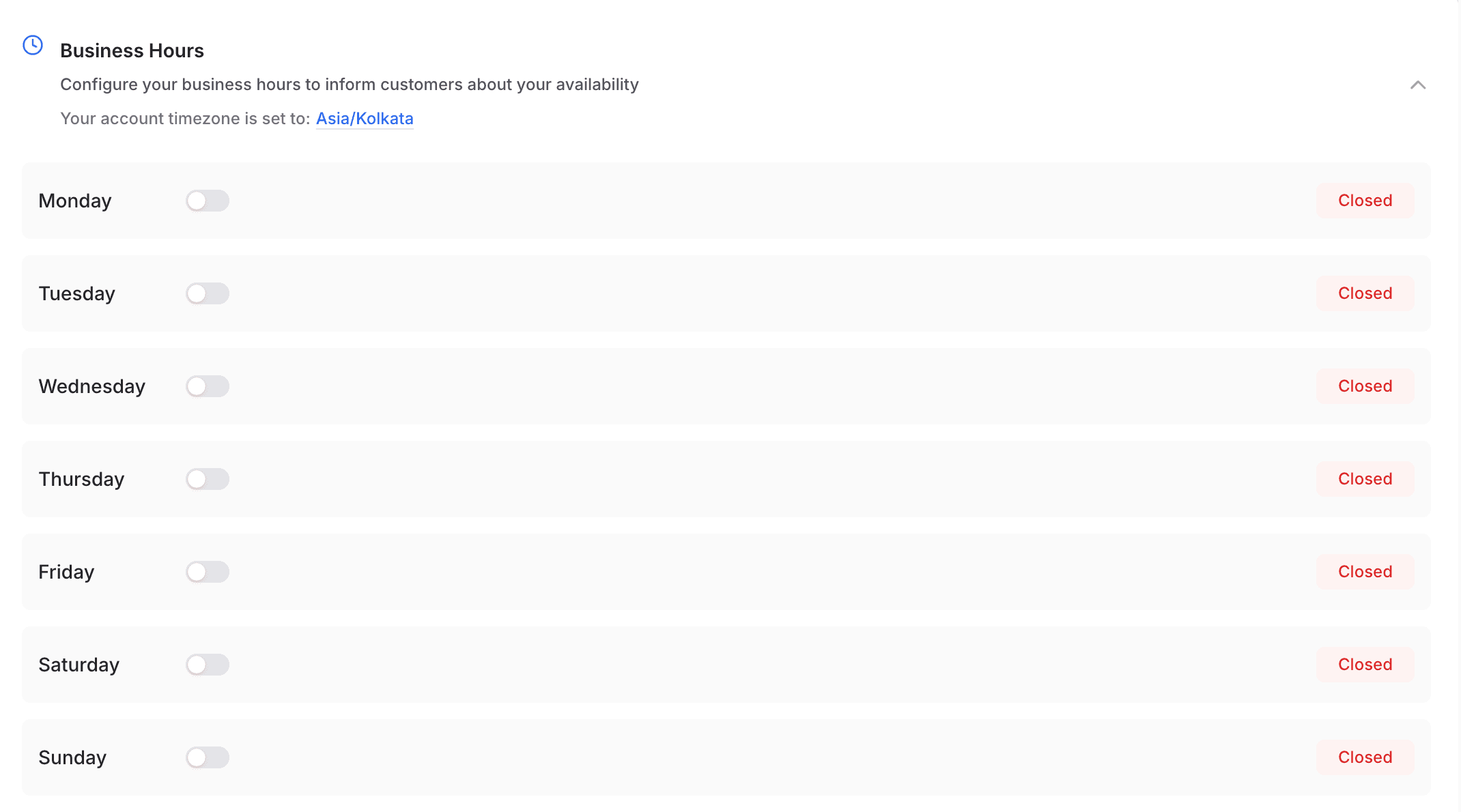
Business Hours
Business Hours define when your team is available to respond to customers.
Messages received outside these hours automatically trigger the Off-Hours Message.
From this section, you can:
- Enable or disable individual days of the week
(e.g., Monday ON, Sunday OFF) - Set start and end times for each active day
(e.g., 10:00 AM – 7:00 PM) - View and update your current account timezone
Setting Business Hours ensures customers clearly understand when responses are expected and helps automate the correct welcome or off-hours messages.
Welcome Message
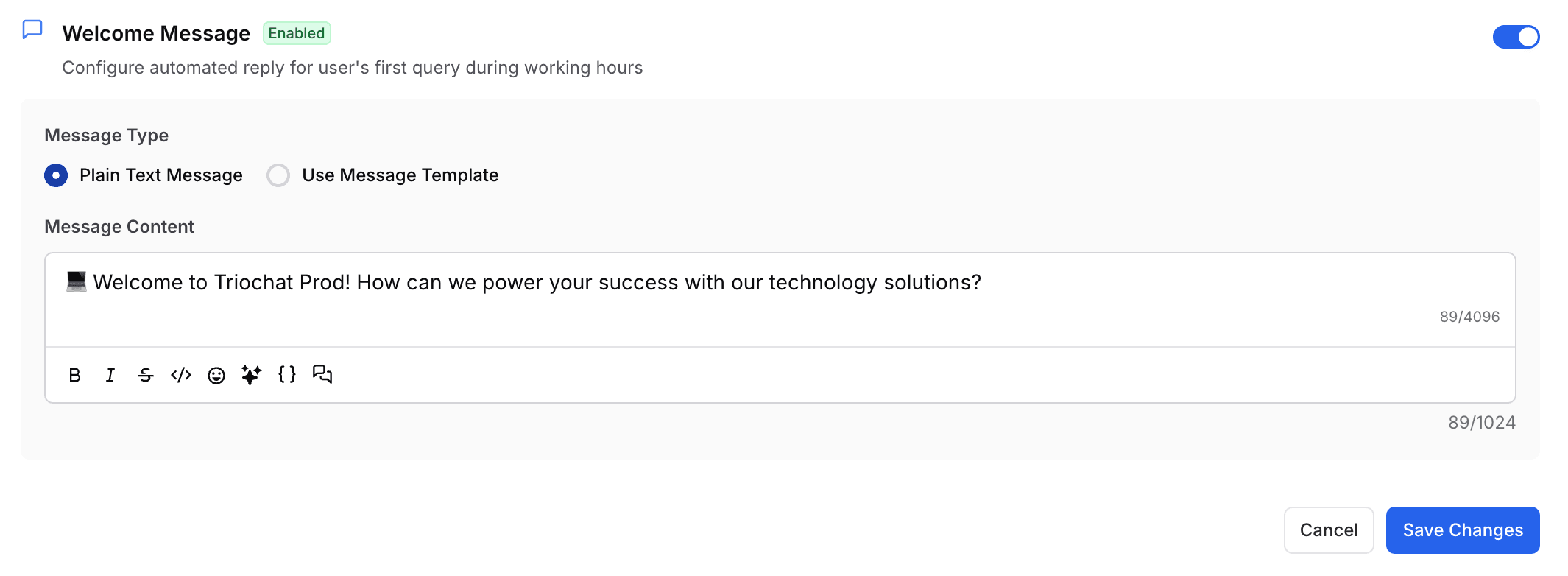
The Welcome Message is automatically sent when a customer contacts you during business hours.
It helps greet customers instantly and sets a professional tone before an agent replies.
Configuration Options
Message Type
-
Plain Text Message
Write a custom greeting using the message editor. -
Use Message Template
Select a WhatsApp-approved template for compliant automated greetings.
Message Editor
You can include:
- Formatted text
- Emojis
- Variables / placeholders
- Template preview (when using templates)
This ensures your greeting remains warm, consistent, and aligned with your brand voice.
Off-Hours Message
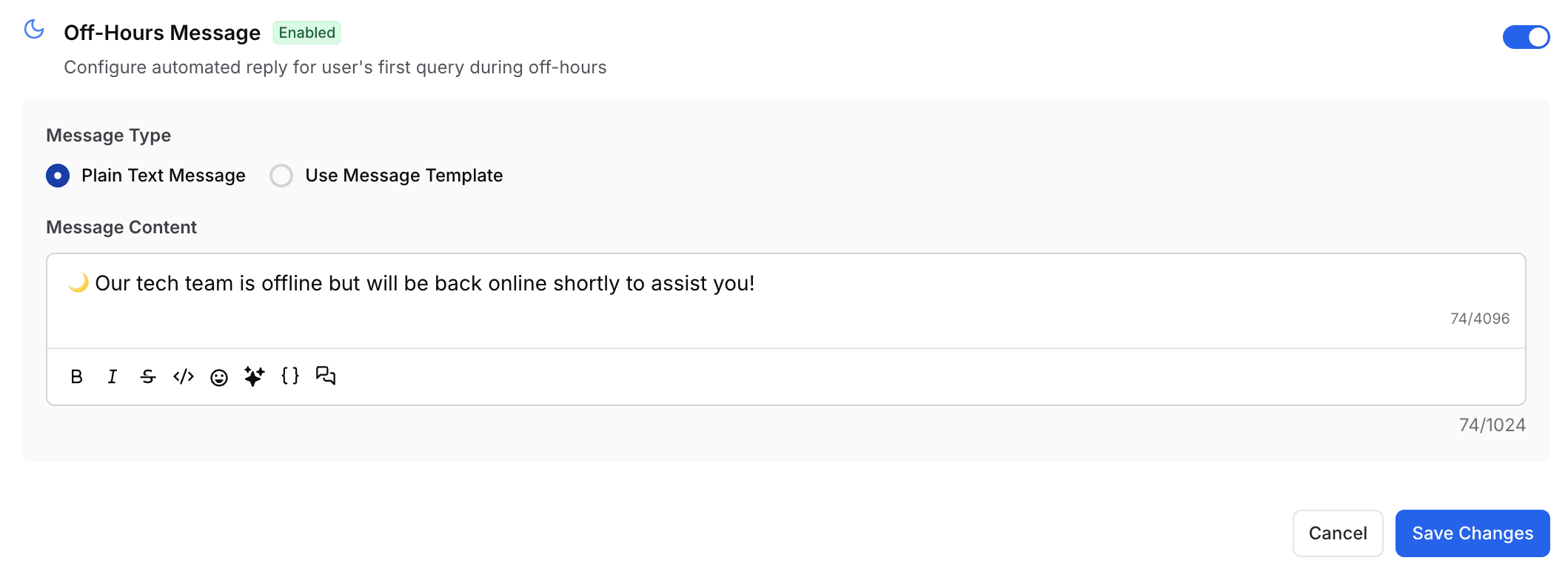
The Off-Hours Message is sent automatically when customers contact you outside your Business Hours.
This message reassures users that their query has been received even when your team is unavailable.
Configuration Options
Message Type
-
Plain Text Message
Example: “Our team is currently offline but will respond shortly.” -
Use Message Template
Choose from WhatsApp-approved templates for automated replies.
This helps manage customer expectations and maintain trust.
Delayed Response Message
The Delayed Response Message activates when your team takes longer than expected to reply.
Once enabled, the system sends a friendly automated message after a predefined delay.
Example Use Cases
- Send after 30 seconds
- Send after 1 minute
- Set a custom delay

This feature is especially useful for busy teams and helps improve customer satisfaction by acknowledging wait times.
On this page