Filter Conversations
Filter Conversations
The Filter Conversations option helps users quickly find specific chats in the Inbox based on conversation attributes such as status, assignee, tags, source, and more.
Using filters helps teams organize conversations efficiently and locate relevant chats faster.
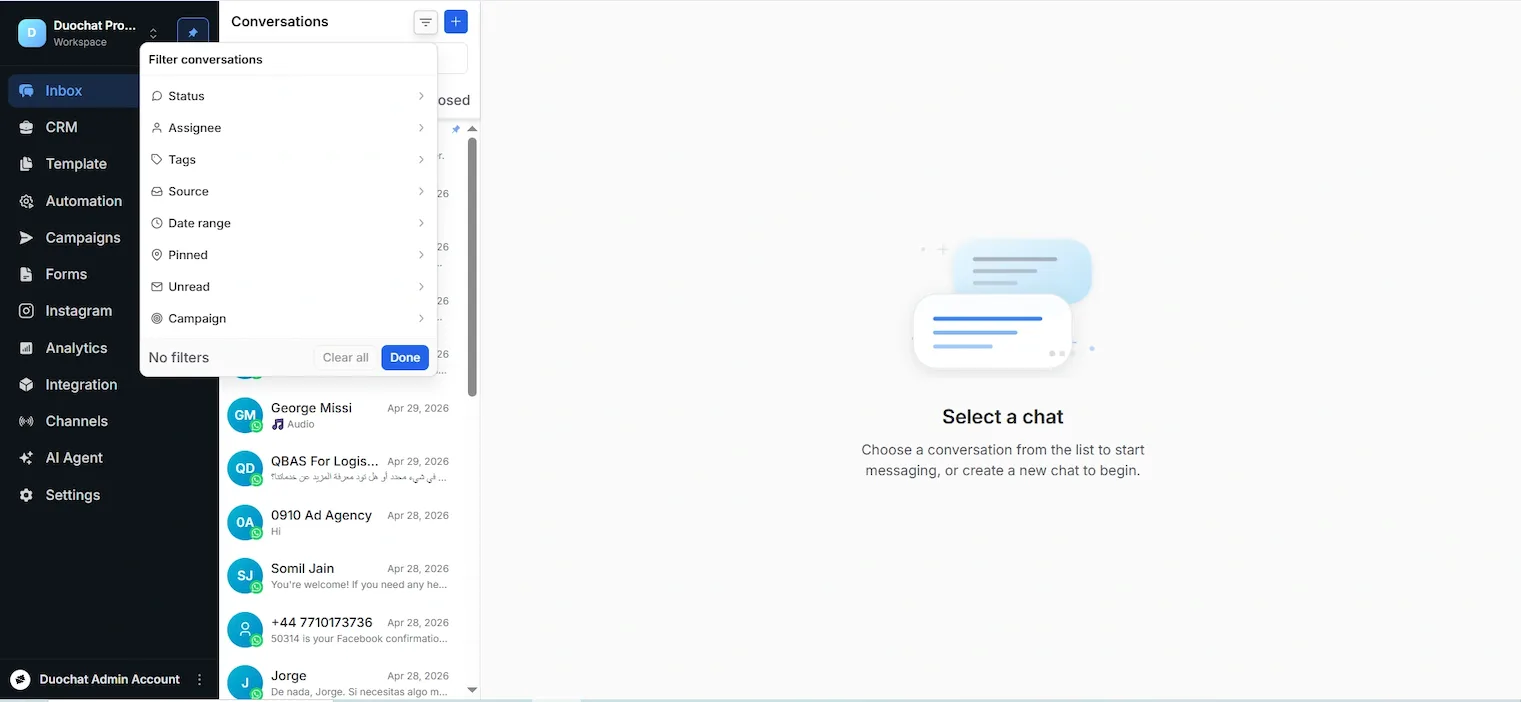
Access Conversation Filters
Step 1:
Go to Inbox from the left navigation bar.
Step 2:
Click the Filter option available in the conversation panel.
The Filter Conversations window will open.
Available Conversation Filters
Status
Filter conversations based on their current status.
Examples:
- All
- Open
- Closed
This helps agents focus on active or pending conversations.
Assignee
Filter conversations based on the assigned team member or agent.
Useful for tracking individual workloads and assigned chats.
Tags
Filter conversations using tags added to chats.
Examples:
- Sales
- Support
- Priority Customer
- Follow-up
Tags help categorize conversations for easier management.
Source
Filter conversations based on the communication channel or source.
Examples:
This helps teams manage channel-specific conversations.
Date Range
Filter chats based on a selected time period.
Useful for reviewing conversations from a specific day, week, or custom date range.
Pinned
View only pinned conversations.
Pinned chats help agents quickly access important or high-priority conversations.
Unread
Filter conversations that contain unread messages.
This helps agents identify chats that require immediate attention.
Campaign
Filter conversations associated with a specific campaign.
Useful for analyzing customer responses from marketing or broadcast campaigns.
Clear Applied Filters
To remove all active filters:
Click the Clear All button. This will reset all applied filters and display all conversations again.
Apply Filters
After selecting the required filters:
Click Done to apply the filters. The conversation list will automatically update based on the selected criteria.
On this page